
How to Press the PS Button Without a Controller on PS4
Introduction
Finding yourself without a PS4 controller can be frustrating, especially when you need to access your system urgently. Whether your controller is misplaced, malfunctioning, or simply uncharged, you might feel stuck. However, fear not, as there are alternative methods to press the PS button without a controller. This comprehensive guide will walk you through viable solutions, ensuring you maintain command over your PS4 experience, even in the absence of a traditional controller.
Understanding the Importance of the PS Button
The PS button is a vital component of the PS4 controller that controls several crucial functions:
1. Console Activation: It allows you to power on the console or transition it into standby mode quickly.
2. Home Menu Access: A quick press helps bring up the home menu, letting you navigate through settings, games, or media.
3. Application Switching: The PS button facilitates seamless switching between different applications, enhancing user experience.
Comprehending the significance of the PS button enriches your approach to finding alternative controls, which is essential when exploring non-controller options.
Alternative Methods to Access PS Button Functions
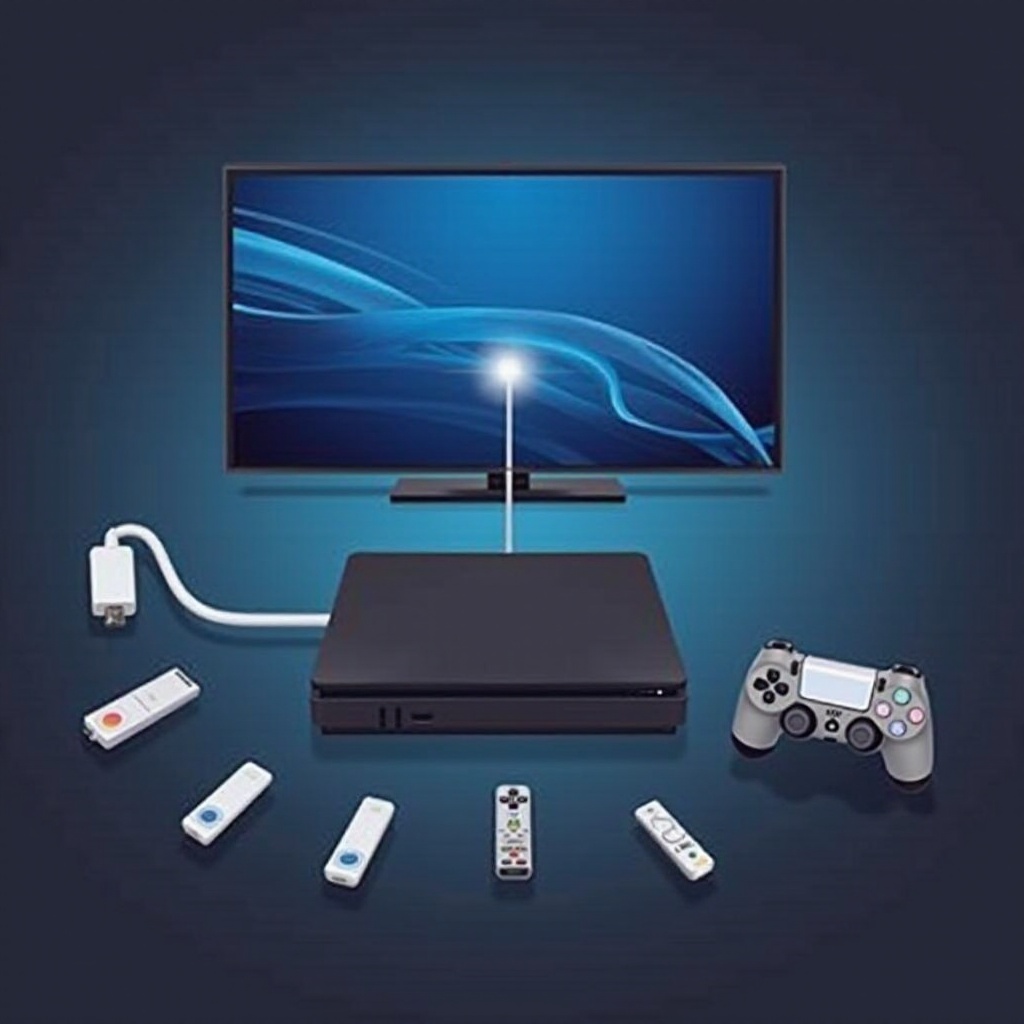
While a controller is the primary device for operating your PS4, several technological alternatives can step in when it’s unavailable:
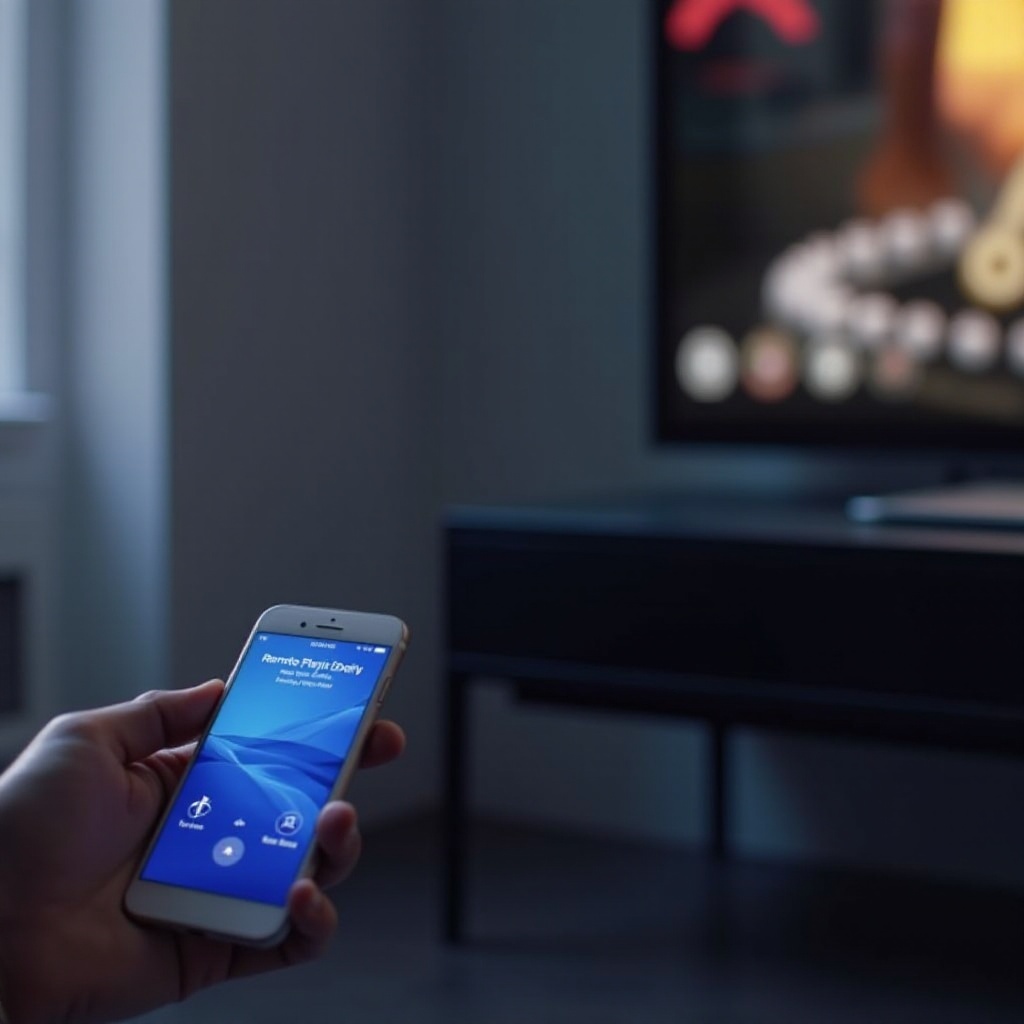
- PlayStation App: This app transforms your smartphone into a handy PS4 controller, compatible with both Android and iOS devices.
- USB Keyboard or Mouse: These common peripherals can substitute for a controller when plugged into your PS4.
- Compatible Remote Control: Certain universal remotes include compatibility features with the PS4, providing a convenient option for users.
Utilizing these methods lets you regain control over your PS4 effortlessly, ensuring continued enjoyment and command over your gaming setup.
Detailed Setup Guide for Each Method
Implementing these alternatives requires specific steps to ensure successful operation:
- Setting Up the PlayStation App:
- Download and install the PlayStation App via the App Store or Google Play.
- Ensure both your phone and PS4 are connected to the same Wi-Fi network.
-
Open the app, log in with your PSN credentials, and use the ‘Connect to PS4’ feature. Your phone will now serve as a remote.
-
Using a USB Keyboard or Mouse:
- Select a suitable USB keyboard or mouse.
- Connect the device directly to a PS4 USB port.
-
Navigate using arrow keys or the mouse pointer, where specific keys mimic the PS button functionality.
-
Configuring a Remote Control:
- Acquire a universal remote compatible with PS4.
- Follow the pairing instructions provided by the remote’s manufacturer.
- Operate your console using the remote to access the system features conveniently.
These setup instructions assure that you can engage with your PS4’s functions even when a traditional controller isn’t available.
Troubleshooting Common Issues
Though these methods are robust, some users may encounter technical issues. Address these common problems with these solutions:
- Connection Problems:
-
Confirm that all devices share the same network. Refresh your router or reboot devices if issues persist.
-
Device Compatibility:
-
Ensure that devices are compatible before starting and keep applications and system software updated.
-
App Configuration Errors:
- Reset app settings if connection errors occur frequently. Reinstallation may solve lingering problems.
By addressing these potential challenges, you can ensure your alternatives run smoothly, preserving the enjoyment of your PS4 system.
Practical Tips and Recommendations
For a seamless non-controller experience, consider these suggestions:
- Maintain updated software on apps and devices to ensure best performance.
- Invest in high-quality accessories like USB keyboards and universal remotes for greater reliability.
- Regularly back up data to prevent any issues from escalating unexpectedly.
Following these guidelines can enhance your PS4 usage and provide effective alternatives when a controller is not accessible.
Conclusion
Operating your PS4 without a standard controller is entirely feasible with a little preparation and the right tools. Alternatives such as the PlayStation App, USB attachments, and suitable remotes maintain your system’s functionality without stress. Addressing potential technical hurdles ensures you continue to navigate your gaming and entertainment experiences seamlessly. Embrace these solutions to enjoy uninterrupted access and control over your PS4.
Frequently Asked Questions
Can I use a non-Sony remote to access the PS button?
Yes, many universal remotes compatible with PS4 can access the PS button and other functions on the PS4.
What should I do if my app can’t connect to the PS4?
Make sure both devices are on the same network. Restart the app, your phone, or your PS4, and update systems to improve connection.
Are there other devices I can use as a substitute for a controller?
Aside from keyboards, mice, and compatible remotes, some users have used gamepads or joypads with suitable settings for PS4 functions.