
How to Clean Your Chromebook Keyboard: A Step-by-Step Guide
Introduction
Keeping your Chromebook keyboard clean is essential for optimal performance and longevity. Dust, crumbs, and grime can accumulate over time, leading to sticky or malfunctioning keys. In this guide, we’ll explore everything from necessary cleaning supplies to a step-by-step cleaning process designed to keep your keyboard in top condition. Follow along to ensure your Chromebook remains as responsive as the day you got it.

Essential Cleaning Supplies
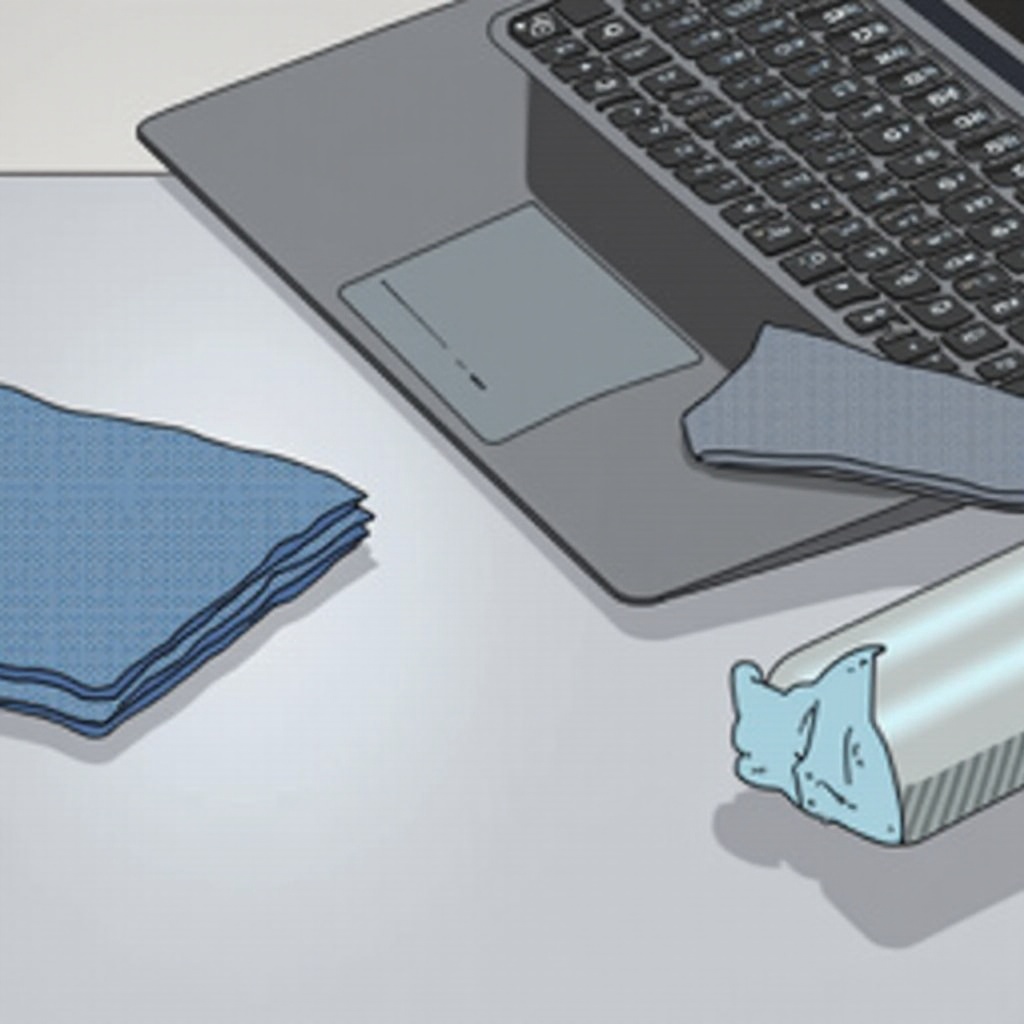
Before you begin, make sure you have all the necessary supplies for effective and safe cleaning:
- Microfiber Cloths: Ideal for gently wiping the keyboard without scratching the surface.
- Compressed Air Can: Helps eliminate dust and debris lodged between keys.
- Isopropyl Alcohol (70%): Suitable for sanitizing and disinfecting your keyboard without causing harm.
- Cotton Swabs or Soft Brushes: Perfect for reaching tight spaces and cleaning around individual keys.
Using appropriate cleaning materials is crucial to avoid damaging your Chromebook during the cleaning process.
Preparing Your Chromebook for Cleaning
Before starting, take a few preparatory steps to protect your device:
- Power Down the Device: Ensure your Chromebook is completely turned off to prevent accidental key presses that can cause errors.
- Unplug all Accessories: Disconnect any external devices such as a mouse or external storage.
- Disconnect from Power Sources: Unplug the charger to mitigate any risk of electrical damage during cleaning.
With your device safely prepared, you’re ready to move on to cleaning.
Step-by-Step Cleaning Process
Now, let’s detail the steps to achieve a clean keyboard:
- Removing Surface Dust and Debris:
- Use a compressed air can to blow around and between keys to remove loose debris.
-
Lightly shake the Chromebook upside down to help dislodge any trapped particles.
-
Cleaning Between the Keys:
- Wrap a microfiber cloth around a card to gently clean spaces between keys.
-
For persistent grime, use a cotton swab dampened with isopropyl alcohol to clean tight spots.
-
Sanitizing Key Surfaces:
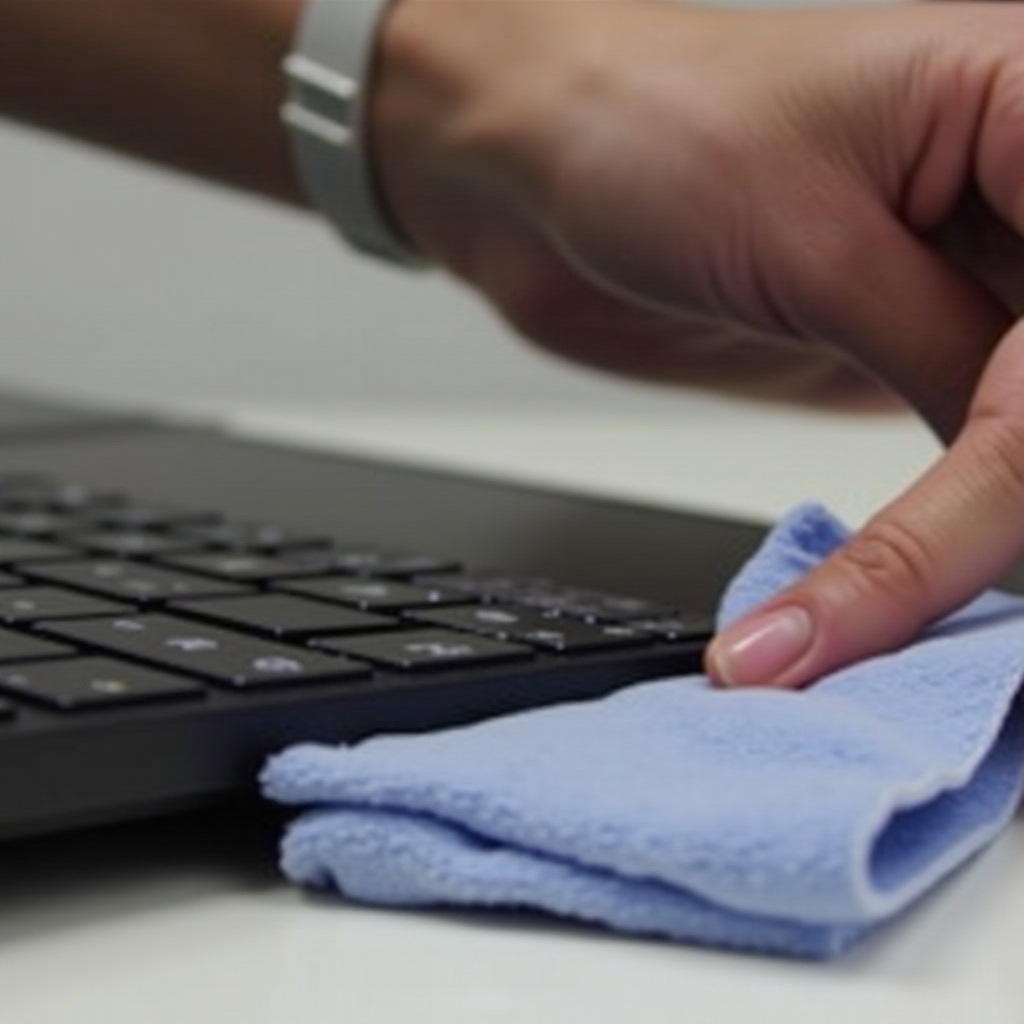
- Dampen a microfiber cloth with a small amount of isopropyl alcohol.
- Carefully wipe down each key surface, avoiding excess moisture to prevent injury to the keyboard.
Following these steps will result in a clean and sanitized Chromebook keyboard.
Maintenance Tips for a Clean Keyboard
Ongoing maintenance is key to extending your keyboard’s lifespan. Incorporate these practices:
- Regular Maintenance Schedule: Clean your keyboard at least monthly to prevent excessive build-up.
- Preventative Measures: Use keyboard covers to protect against dust and spills; encourage non-eating zones around your device.
Consistency in maintenance practices goes a long way in preserving your Chromebook’s condition.
Common Mistakes and How to Avoid Them
While cleaning, be cautious to avoid common missteps that could harm your device:
- Overuse of Liquid Cleaners: Ensure your cloth is lightly dampened, never soaking wet, to prevent liquid from seeping into the device.
- Applying Too Much Pressure: Gentle actions safeguard against accidentally dislodging keys or damaging the keyboard structure.
Avoiding these errors ensures a safe and effective cleaning routine.
Conclusion
A clean keyboard not only enhances the user experience but also extends the life of your Chromebook. By following proper cleaning protocols and maintaining regular cleaning schedules, your device will continue to function as intended. Make keyboard cleaning a habit, and enjoy the added benefits of a well-maintained Chromebook.
Frequently Asked Questions
How often should I clean my Chromebook keyboard?
You should clean your Chromebook keyboard at least once a month, or more frequently if you often work in dusty environments or eat near your device.
Can I use household cleaners on my keyboard?
It’s best to avoid using household cleaners as they may contain harsh chemicals that can damage your Chromebook. Stick to isopropyl alcohol and microfiber cloths for safe cleaning.
What should I do if a key is still sticky after cleaning?
If a key remains sticky, gently remove it if your model allows, and clean underneath using isopropyl alcohol. If the issue persists, consult a professional for repair.