
Unlocking the Benefits of Laptop Night Mode for Improved Digital Wellbeing
Introduction
In our increasingly digital world, finding ways to support our wellbeing is crucial. Laptop night mode has become indispensable for users seeking to reduce eye strain and enjoy a more comfortable viewing experience. Originally designed for nighttime usability, this feature adjusts the screen’s color temperature to warmer hues, reducing the harmful effects of blue light. Gaining widespread acclaim, night mode is recognized for promoting healthier screen time habits. This article delves into the advantages of activating laptop night mode, offering guidance on enabling it across platforms, and providing additional tips for an optimal digital experience.
Understanding Laptop Night Mode
Laptop night mode, often referred to as a blue light filter or dark mode, modifies display settings to curtail blue light emission. Blue light plays a role in maintaining alertness during daytime but can be disruptive at night, interfering with melatonin production, the hormone that regulates sleep. Night mode alters the screen’s color scheme to warmer tones, which eases eye strain and encourages better nighttime viewing conditions.
Integrating night mode into regular device usage is a scientifically supported approach to digital health rather than a passing trend. Numerous studies indicate that blue light exposure before sleep can significantly disrupt sleep patterns. By using night mode, users can proactively manage potential digital-related eye strain while sustaining productivity.
Benefits of Activating Night Mode on Your Laptop
Turning on night mode on a laptop yields multiple benefits that are pivotal for healthier digital habits:
-
Reduces Eye Strain: By filtering blue light, night mode alleviates discomfort from extended screen time, minimizing dryness and irritation.
-
Improves Sleep Quality: With reduced blue light exposure, melatonin production normalizes, contributing to better sleep patterns and more restful sleep.
-
Enhances Focus: Night mode’s warmer tones decrease glare, creating a more calming viewing environment for better focus during late-night work or study sessions.
-
Energy Efficiency: On OLED screens, night mode can conserve battery life by using darker interfaces, which consume less energy compared to bright displays.
Night mode is not only a tool for eye health but also supports general wellbeing for anyone spending considerable time on laptops.
How to Enable Night Mode on Different Laptop Platforms
The process of enabling night mode varies between laptop platforms. Here is a detailed guide for Windows laptops, MacBooks, and Chromebooks.
Windows Laptops
- Open the ‘Settings’ menu by clicking the Start button and selecting the gear icon.
- Go to ‘System’, then ‘Display’.
- Toggle the ‘Night light’ switch to ‘On’.
- Click ‘Night light settings’ to schedule automatic activation at your preference.
MacBooks
- Go to the Apple menu and select ‘System Preferences’.
- Click ‘Displays’, then head to the ‘Night Shift’ tab.
- Opt for ‘Turn On Until Tomorrow’ for immediate activation, or use ‘Schedule’ for automation based on sunset and sunrise.
Chromebooks
- Click the clock at the bottom-right and choose the gear icon for settings.
- Navigate to ‘Device’ and click ‘Displays’.
- Under ‘Night Light’, toggle the switch and adjust color temperature accordingly.
These steps ensure that night mode is easily accessible across all laptop brands and models.
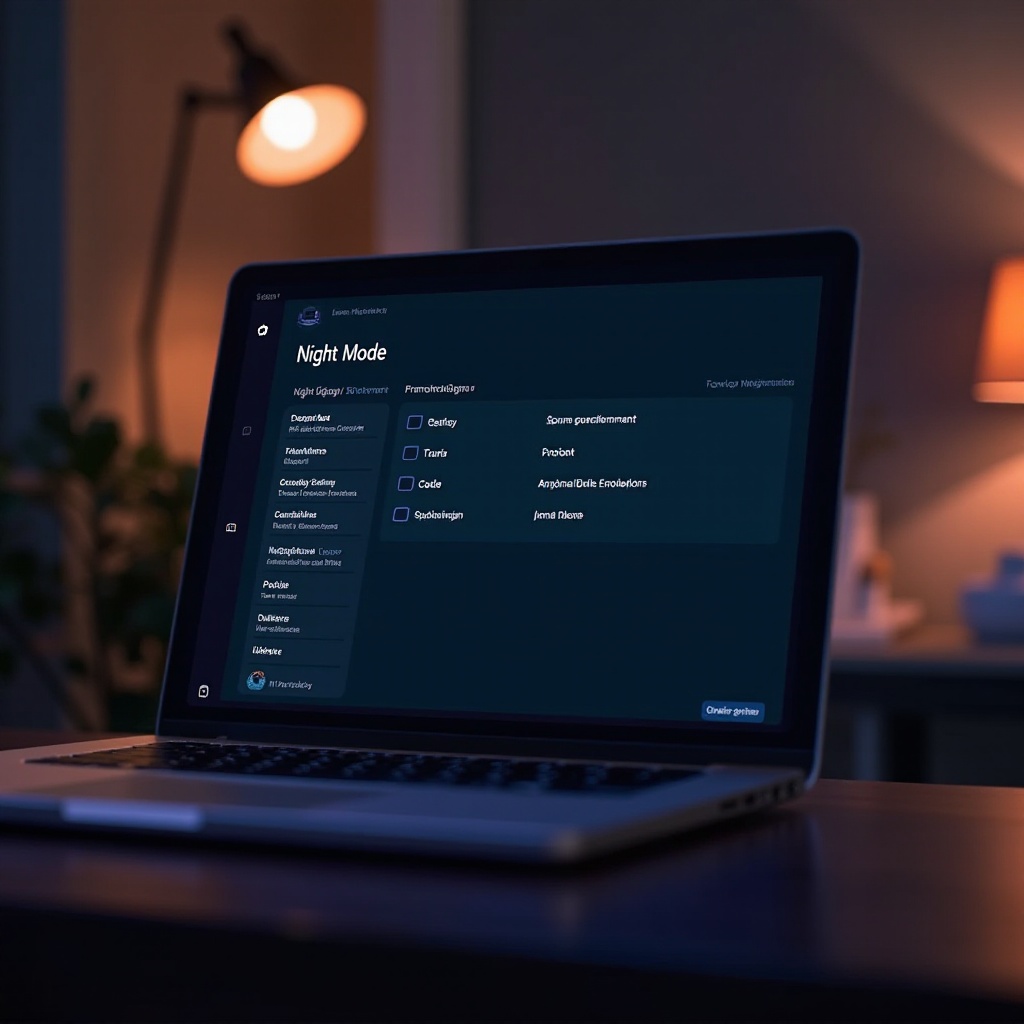
Customizing Night Mode for Optimal Use
While default settings offer immediate benefits, customizing night mode can tailor it to your personal requirements. Adjusting the color temperature lets you find the ideal balance between cool and warm tones, ensuring comfort. Experimenting with the scheduling options allows screen adjustments to align with personal routines, making sure screen settings complement your lifestyle seamlessly.
Customization amplifies the utility of night mode, providing a personalized tool for managing digital interaction while safeguarding health.
Additional Tips to Reduce Eye Strain While Using Laptops
In addition to activating night mode, the following practices can further alleviate eye strain:
- Practice the 20-20-20 Rule: Every 20 minutes, focus on an object 20 feet away for at least 20 seconds to relieve eye strain.
- Adjust Screen Brightness: Match screen brightness with the room’s ambient light for more comfortable visibility.
- Maintain an Ergonomic Setup: Position the laptop screen at arm’s length and slightly below eye level.
These strategies, combined with night mode, markedly improve visual comfort for prolonged laptop use.
Conclusion
Night mode stands as a beneficial tool for digital wellness, easing eye strain and improving sleep quality. By adopting night mode and implementing supplementary healthy viewing habits, users can maintain a balanced and healthy digital lifestyle. Technology is here to enhance our lives, and with these practices, it truly can.
Frequently Asked Questions
How does night mode differ from regular display settings?
Night mode reduces blue light emission by applying warmer tones, unlike regular settings that enhance vibrancy and sharpness for daytime use.
Can night mode affect laptop performance?
Typically, night mode does not impact laptop performance; it mainly adjusts display settings without affecting processing speed or capability.
Is night mode beneficial for all types of screens?
Yes, night mode is effective across various screen types, including LCD and OLED, by reducing eye strain and enhancing visual comfort.