
How to Troubleshoot the Red Light on Your Starlink Router
Introduction
Seeing a red light on your Starlink router can be unsettling, especially when you’re counting on a reliable internet connection for daily tasks or entertainment. Knowing what this red light signifies is crucial for keeping your network running smoothly. This guide will equip you with the knowledge and steps needed to diagnose and resolve the red light issue on your Starlink router, ensuring you regain seamless online connectivity.
Understanding the Starlink Router Light Codes
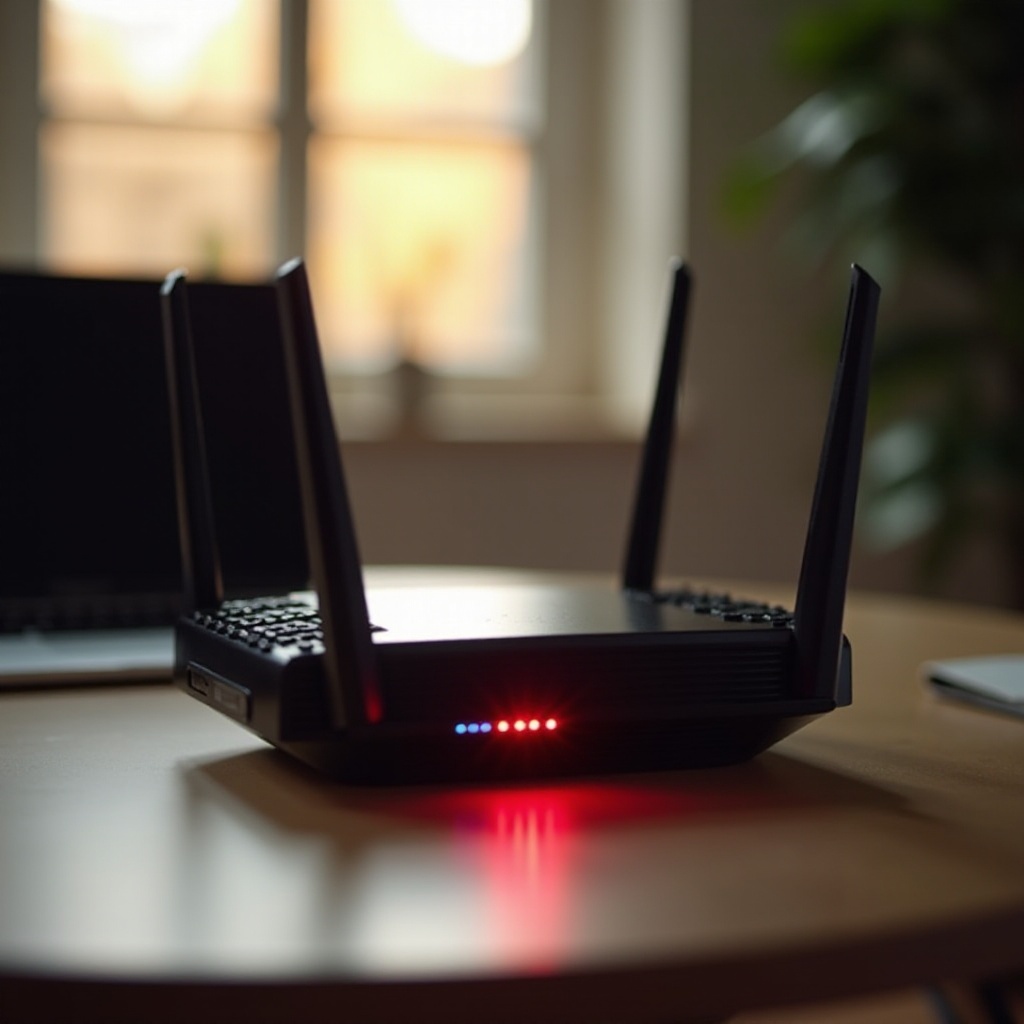
In achieving steady connectivity, comprehending the light codes on your Starlink router is essential. These colors indicate different statuses of your network, with the red light being a significant signal.
When your Starlink router displays a red light, it often points to a connectivity problem. This warning suggests that something is hindering the router from keeping a stable network connection. Decoding these light codes is pivotal to assessing the severity and type of the problem.
Common Causes of the Red Light
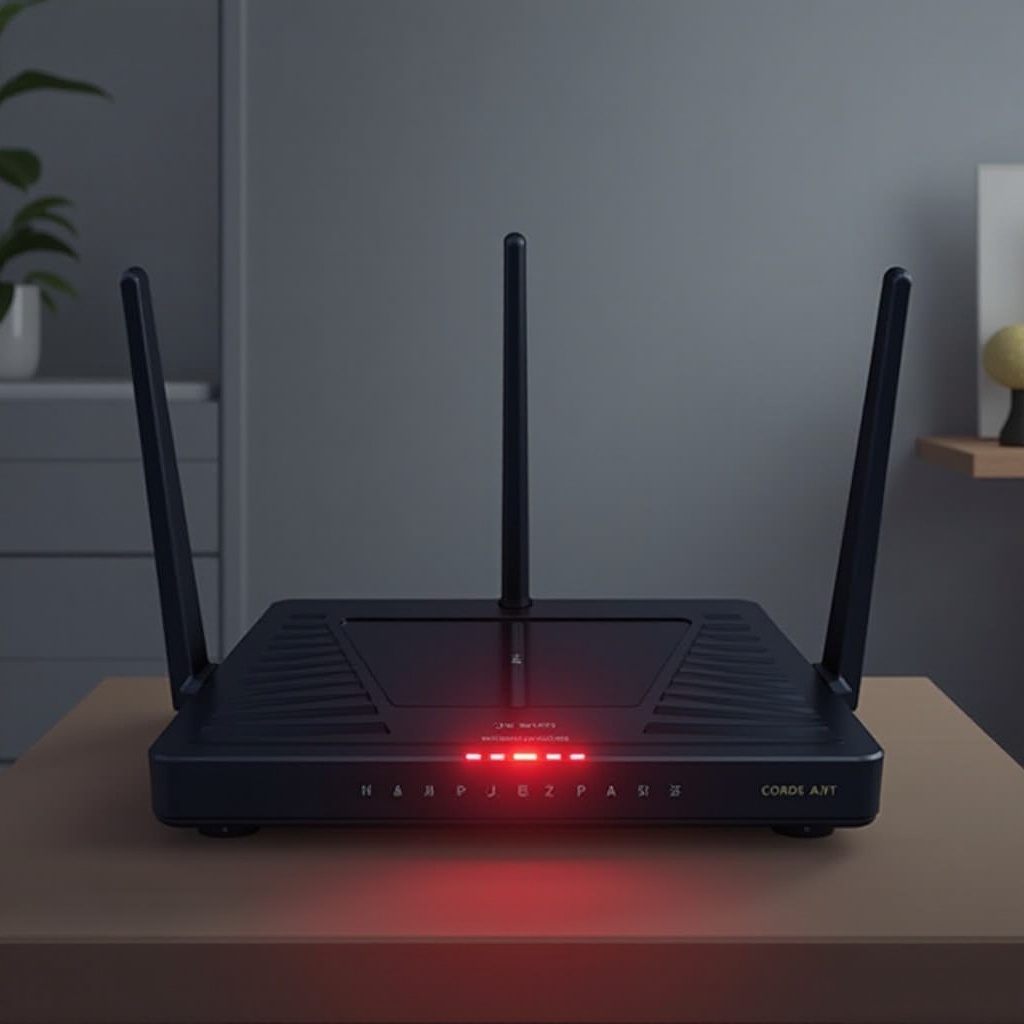
Various factors can cause the red light to illuminate on your Starlink router.
- Network Connectivity Issues: Sometimes, the red light is due to internet outages in your area or weak signal strength between your router and the Starlink satellite. Weather conditions or physical barriers can also disrupt the signal.
- Hardware-Related Problems: Physical damage or malfunctions in the router’s hardware can trigger the red light. A loose cable or connector might also require reattaching.
- Software or Firmware Conflicts: Outdated firmware or software glitches can lead to malfunctions, presenting as a red light.
Pinpointing the root cause helps streamline the troubleshooting process, facilitating a quicker resolution.
Step-by-Step Troubleshooting Guide
Once you’ve identified potential causes, systematically troubleshooting the problem becomes necessary. Here’s a detailed approach:
- Initial Checks and Preparations
- Check for Network Outages: Start by confirming if there are any network outages in your area. Visit Starlink’s official site or reach out to their customer service for updates.
-
Ensure Physical Connections: Verify all cables and connectors are secure, as loose connections can easily disrupt the router’s operation.
-
Technical Adjustments
- Restart the Router: A simple restart can resolve many issues. Disconnect the power source, wait for about 30 seconds, and reconnect it.
-
Update Firmware via the Starlink App: Use the Starlink app to check for firmware updates. Keeping the router’s software current helps prevent and fix numerous problems.
-
Advanced Troubleshooting Techniques
- Adjust Router Settings Manually: If problems persist, access the router’s settings on your computer to check for misconfigurations or settings that might have been altered inadvertently.
- Contact Starlink Support for Persistent Issues: If the red light remains after other measures, contact Starlink’s technical support. Sharing your troubleshooting steps aids in diagnosing the issue more quickly.
Best Practices for Maintaining a Stable Connection
To avoid future red light issues, implementing reliable network practices is key.
- Router Positioning: Place your router in an open area, away from devices that may cause electronic interference. Elevating it reduces obstructions and can enhance signal strength.
- Regular Updates and Maintenance: Regularly check and apply software updates to maintain the router’s optimal functionality. Routine maintenance checks can preempt potential problems.
Integrating these best practices minimizes the chance of reencountering the red light problem.
Conclusion
Encountering a red light on your Starlink router can initially seem daunting, but understanding the issue and following a structured troubleshooting approach will usually lead to a swift fix. Keeping your equipment updated and regularly monitored will help ensure a stable and consistent internet experience.
Frequently Asked Questions
Why does my Starlink router show a red light intermittently?
Intermittent red lights indicate fluctuating network conditions or temporary interferences. Proper router placement and updating can reduce this issue.
Can interference from other devices cause the red light to appear?
Yes, electronic devices like microwaves and cordless phones can cause interference. Positioning your router away from such devices helps minimize risk.
How do I contact Starlink support if the issue persists?
Contact Starlink support through their official app or website. Provide a detailed description of your issue and previous troubleshooting steps for quicker assistance.