
Troubleshooting Brother Printer Toner Problems: A Comprehensive Guide
Introduction
Brother printers are a staple in homes and offices due to their reliability and excellent print quality. However, users occasionally encounter toner problems that can disrupt productivity. Addressing these toner issues promptly ensures the longevity and efficiency of your printer. This comprehensive guide will help you understand common toner problems in Brother printers and provide practical solutions to resolve them quickly.
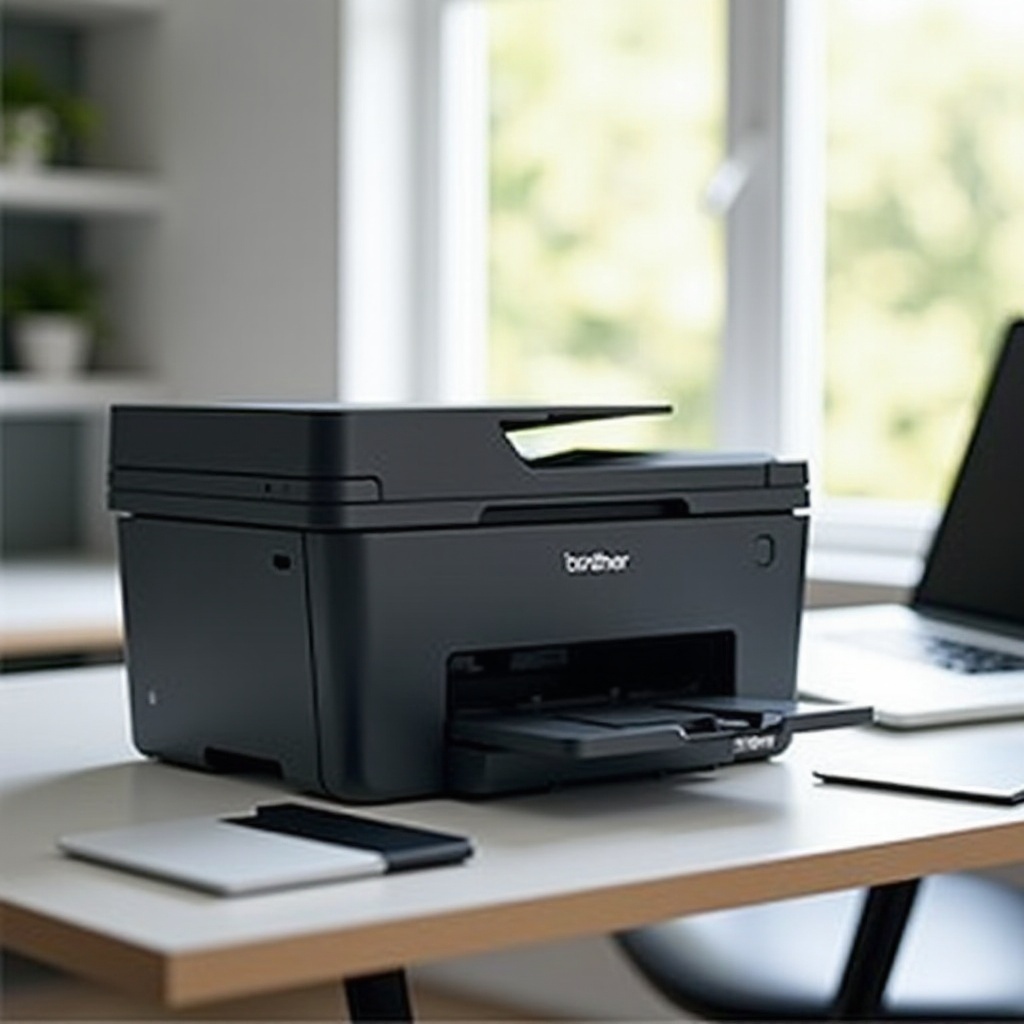
Understanding Brother Printer Toner Issues
To troubleshoot effectively, it’s essential to grasp the basic workings of your Brother printer’s toner system. Common issues, such as smudges on prints or cartridges not being recognized, usually arise from simple errors or fatigue in the toner mechanism. By understanding how the toner functions within your printer, users can identify and mitigate these issues without much hassle.
Common Toner Problems
Several issues can crop up with Brother printer toner cartridges, including unrecognized cartridges, low toner warnings persisting after replacement, and toner spilling issues. Often these problems are due to misalignment, incorrect installations, or using substandard third-party toner products.
How Brother Toner Works
Brother printers employ a meticulously engineered toner cartridge system. When installed properly, these cartridges integrate seamlessly with the printer to produce crisp and clear prints. Toner levels are monitored by in-built sensors, which ensure timely replacements, maintaining print quality throughout the cartridge’s life.
Common Brother Printer Toner Problems and Solutions
Understanding potential issues is only part of the solution. A systematic troubleshooting approach is necessary to resolve them effectively. Let’s delve into some typical toner problems and ascertain practical steps to tackle them.
Toner Not Recognized by Printer
- Check Cartridge Installation: Confirm the cartridge is properly seated. Misalignment can prevent the printer from recognizing the toner.
- Clean the Contacts: Use a lint-free cloth to clean any residue or toner dust from the cartridge and printer contacts, promoting a proper connection.
- Firmware Update: Outdated firmware can lead to recognition issues, so ensure the printer’s software is up-to-date.
Low Toner Warning After Replacement
If your printer displays a continued low toner warning after replacing a cartridge, try these steps:
- Reinstall the Cartridge: Remove and reinstall the cartridge to ensure correct alignment.
- Reset the Toner Counter: Refer to your printer’s manual to reset the toner counter.
- Verify Genuine Supplies: Ensure the replacement toner is a genuine Brother product, as some third-party cartridges might not be properly recognized.
Toner Smudging or Leaking
- Inspect the Cartridge: Look for visible leaks or damage; replace the cartridge if needed.
- Adjust Printer Settings: Ensure that paper type and quality settings match the media used to prevent smudging.
- Regular Maintenance: Frequently clean the printer, paying particular attention to areas where toner tends to accumulate.
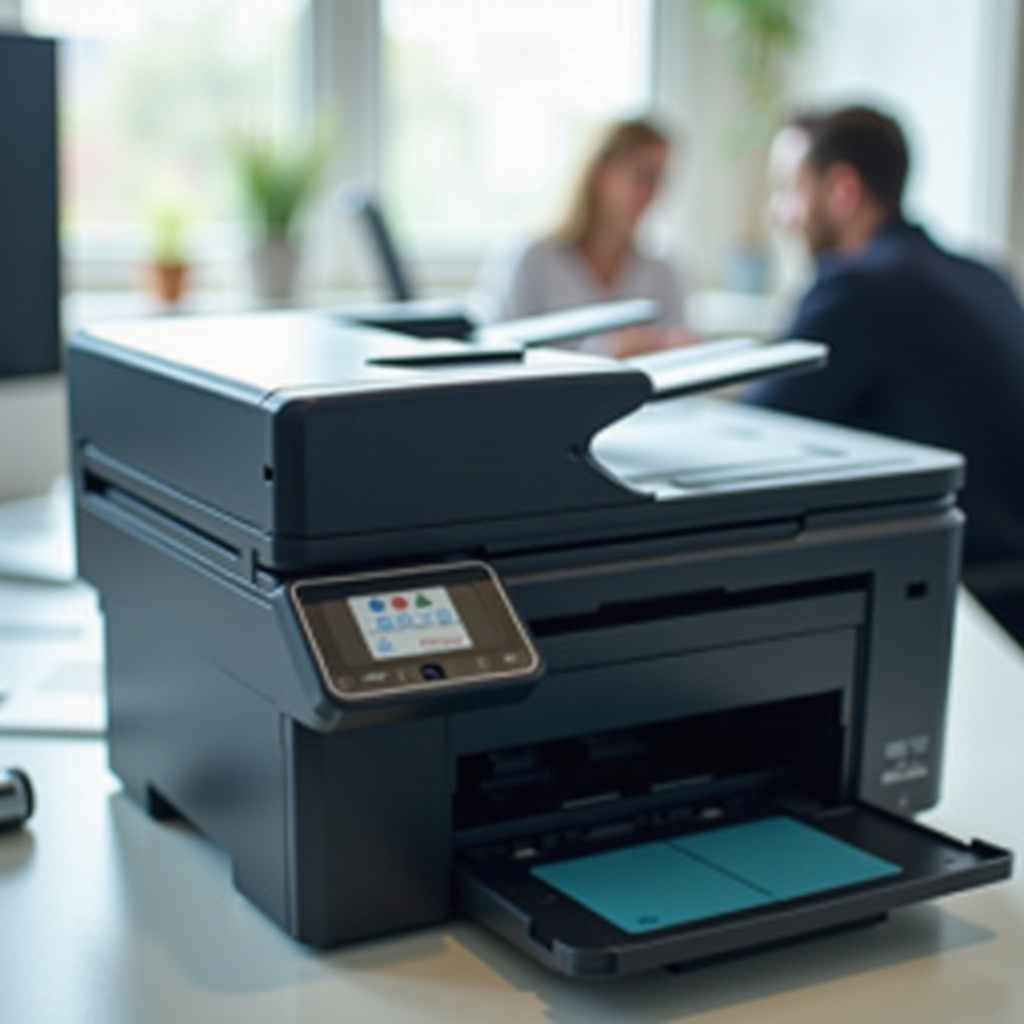
How to Properly Install a Brother Toner Cartridge
Proper installation prevents numerous toner-related issues and ensures uninterrupted printing.
Step-by-Step Installation Guide
- Prepare the Cartridge: Before installation, gently roll the cartridge back and forth five to six times to distribute the toner evenly.
- Locate the Drum Unit: Open the printer’s cover and find the drum unit. Remove any protective covers from the new cartridge.
- Install the Cartridge: Slide the new cartridge firmly into the drum unit until it clicks, indicating proper installation.
Ensuring Proper Cartridge Alignment
Proper alignment is crucial for smooth operation. After installation, print a test page to check for alignment issues, using calibration features in printer settings as necessary.
Maintenance Tips to Avoid Toner Issues
Routine maintenance is easy and can prevent many potential problems before they arise.
Regular Cleaning and Care
Regularly clean the printer, especially its interior, where toner might accumulate. Use recommended cleaning kits, and always switch off the printer before performing maintenance.
Monitoring Toner Levels
Stay ahead of issues by monitoring toner levels through the printer’s software interface, replacing cartridges proactively before they deplete entirely.
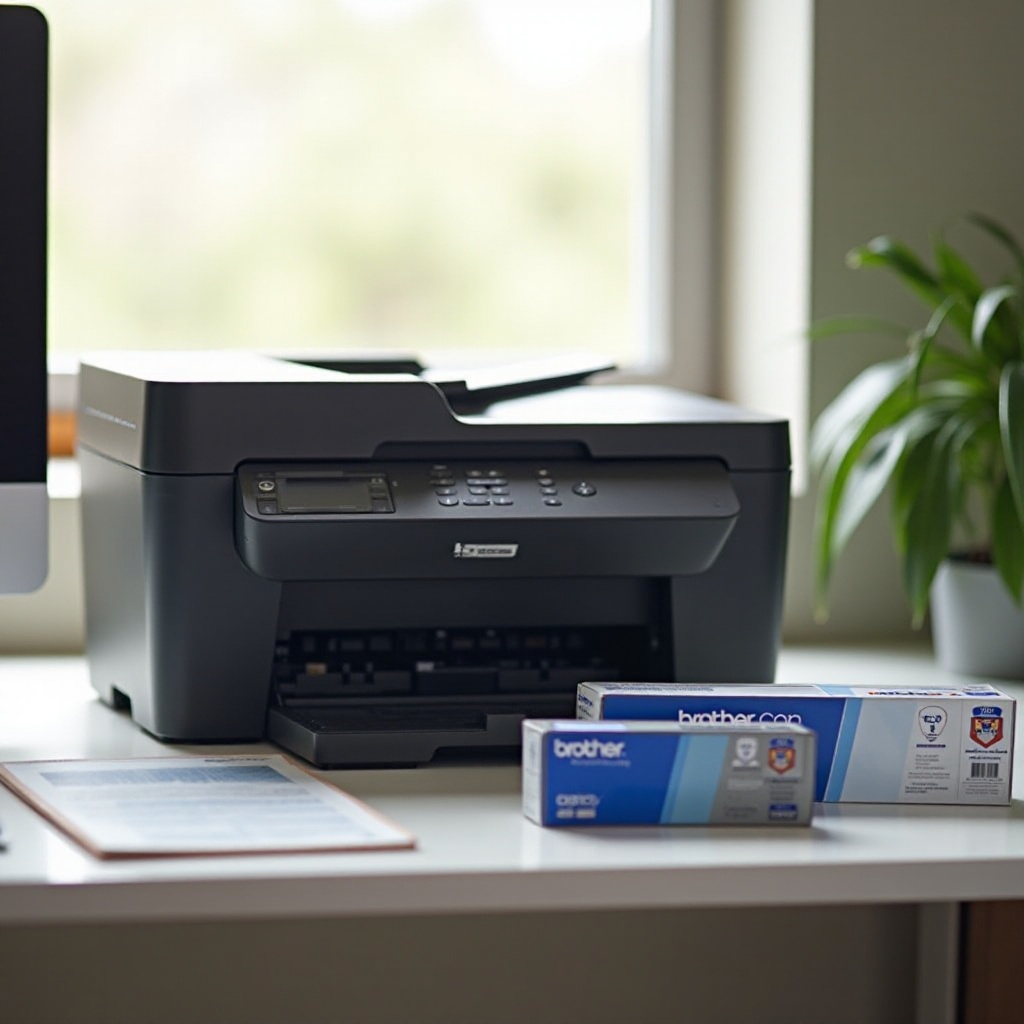
Choosing the Right Toner for Your Brother Printer
Selecting the appropriate toner is critical to print quality and the durability of your printer.
OEM vs. Compatible Toners
Original Equipment Manufacturer (OEM) toners, such as those offered by Brother, are designed for specific printer models to ensure optimal performance. Compatible toners, though cheaper, might not deliver the same quality or reliability.
Cost-Effectiveness and Quality
Though OEM toners have a higher upfront cost, their reliability and quality make them a worthwhile investment in the long run, reducing errors and minimizing maintenance needs.
Conclusion
Brother printers perform excellently when maintained properly, and knowing how their toner systems operate is vital for maximizing performance. By following the troubleshooting steps we have outlined, users can quickly resolve typical toner issues. Remember, regular maintenance and the use of high-quality toner cartridges are essential to avoiding potential disruptions.
Frequently Asked Questions
How do I reset the toner on my Brother printer?
Access the printer settings menu, navigate to the toner reset option, and follow the prompts to reset the toner counter.
Why is my Brother printer not recognizing my new toner?
Ensure the cartridge is installed correctly and the contacts are clean. Consider updating the printer’s firmware and checking if the toner is a Brother genuine product.
What is the best way to store unused toner cartridges?
Store cartridges in a cool, dry place, away from direct sunlight. Keep them in their original packaging until ready to use to prevent moisture absorption and dust accumulation.