
Resolving Remote Desktop Connection Errors: ‘A Connection to Remote Computer Cannot Be Established
Introduction
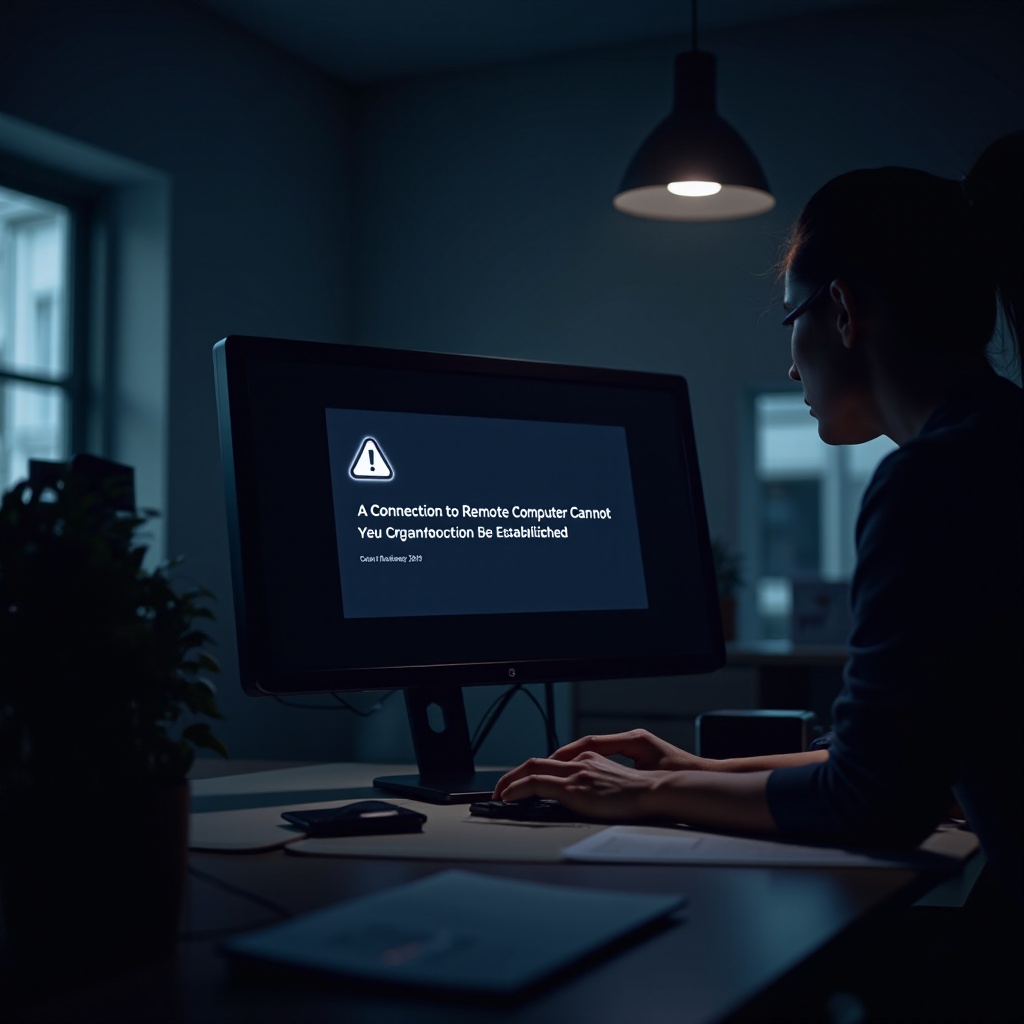
In today’s digitized world, maintaining seamless remote connections is crucial for staying productive. However, many face the annoying obstacle of receiving the message: ‘A connection to remote computer cannot be established.’ This can be a major disruption, but with the right approach, these issues can be diagnosed and resolved effectively. Here, we explore various ways to troubleshoot and fix this error, ensuring your remote desktop experience remains efficient and smooth.

Understanding Remote Desktop Protocols
The Remote Desktop Protocol (RDP), developed by Microsoft, plays a significant role in facilitating remote connections to a computer’s desktop interface. RDP empowers users to access files, applications, and network resources from afar, supporting flexible working environments. More industries are adopting remote desktop solutions as part of their operations.
Despite its advantages, RDP involves configuring several technical components, from software to hardware settings. Any misconfiguration might lead to connectivity issues, emphasizing the necessity for secure and well-calibrated RDP setups. Addressing these configurations often helps avert disruptions in remote sessions.
Diagnosing Connection Issues
Diagnosing problems accurately is the first important step towards troubleshooting remote desktop connection issues. A wrong diagnosis may lead to solutions that do not address the root cause.
Network Connectivity Problems
The most frequent cause of connection problems is network instability or misconfiguration. Remote connections rely heavily on network stability. Ensuring that your network is properly set up and operational can help identify whether network connectivity is the underlying issue.
Software and System Compatibility
Compatibility between the operating system and the remote desktop application is essential. Using outdated software versions can lead to incompatibility, causing interruptions. Keeping both updated eliminates many potential software conflicts.

Troubleshooting Network Settings
Once possible connectivity errors are identified, inspecting and fine-tuning network configurations is next.
Checking Firewall Configurations
- Verify that remote desktop protocols aren’t being restricted by your firewall.
- Ensure that crucial ports, such as port 3389 used for RDP, are open to allow traffic.
Evaluating VPN Setups
While VPNs secure your remote access, they may also hinder connections.
1. Review your VPN settings to confirm they don’t restrict RDP traffic.
2. Modify VPN configurations if needed to allow seamless remote connectivity.
Resolving Credential and Authentication Errors
After ensuring network settings are optimal, credential and authentication settings should be reviewed to confirm they aren’t preventing access.
Validating User Credentials
Correct input of user credentials ensures successful connection:
– Double-check for any typographical errors.
– Reset expired passwords to avoid login failure.
– Be cautious of multiple incorrect entries that may result in account lockout.
Configuring Security Policies
Incorrect security policy configurations can block connections:
– Confirm policies permit logins via RDP.
– Adjust security policies in ways that enable remote access without leaving systems exposed to threats.
Advanced Troubleshooting Techniques
For persistent issues unsolvable by basic methods, advanced troubleshooting steps may be necessary.
Utilizing Command Line Tools
Command-line tools such as Tracert and Ping can effectively diagnose network problems unnoticed by graphical tools.
Editing System Registry for Solutions
Editing the system registry may provide solutions but must be approached with caution due to potential system disruptions. Make registry changes only if fully informed or following reliable guidance.
Third-Party Remote Access Tools
If conventional methods continue to fail, exploring third-party remote access tools like TeamViewer or AnyDesk can provide valuable alternatives and features.
Conclusion
Addressing the ‘A connection to remote computer cannot be established’ error requires a comprehensive troubleshooting approach. From network settings to user credentials and security policies, each aspect plays an essential role in maintaining secure and reliable remote desktop connections. Patience and careful application of targeted solutions are key to maintaining productivity and overcoming these connectivity hurdles.
Frequently Asked Questions
How do I check if my firewall is blocking a remote desktop connection?
Access your firewall options within your antivirus or system settings and verify if essential ports for RDP, such as port 3389, are allowed for communication. Open these ports if they’re blocked.
What should I do if my remote desktop connection keeps dropping?
Ensure you’re maintaining a stable internet connection, adjust firewall and VPN settings, and keep your remote desktop software and operating system updated to minimize drops.
Are there alternative tools for remote access if default methods fail?
Indeed, alternatives such as TeamViewer or AnyDesk provide robust remote access capabilities and could resolve persistent connection issues.