
Troubleshooting and Preventing Acer Monitor Black Screen Issues
Introduction
Acer monitors deliver high-quality visual performance. However, encountering a black screen can disrupt tasks and frustrate users. By identifying the underlying causes and applying the necessary troubleshooting steps, users can restore their monitor’s functionality and prevent future display issues. This comprehensive guide provides insights into solving black screen problems and maintaining your monitor for optimal operation.

Understanding Acer Monitor Black Screen Causes
Before addressing solutions, it’s important to pinpoint the common causes that lead to a black screen on an Acer monitor.
Power Supply and Connection Problems: One frequent issue is a problematic power supply or loose connections. Start by ensuring the power cable is firmly connected to both the monitor and the power source. Inspect for any visible cable damage and secure all connections.
Input Source Misconfigurations: At times, the monitor may be set to the wrong input source. Changes in settings or default device inputs can result in a black screen. Verify and adjust the input settings on your monitor to match the source device such as HDMI or DisplayPort.
Software and Driver Glitches: Outdated or corrupted drivers and software may contribute to display issues. Graphics card malfunctions or system updates interfering with display settings can result in no image. Ensuring up-to-date drivers and software is key to resolving this issue.
Identifying the causes is the initial repair step for your Acer monitor’s black screen troubles.
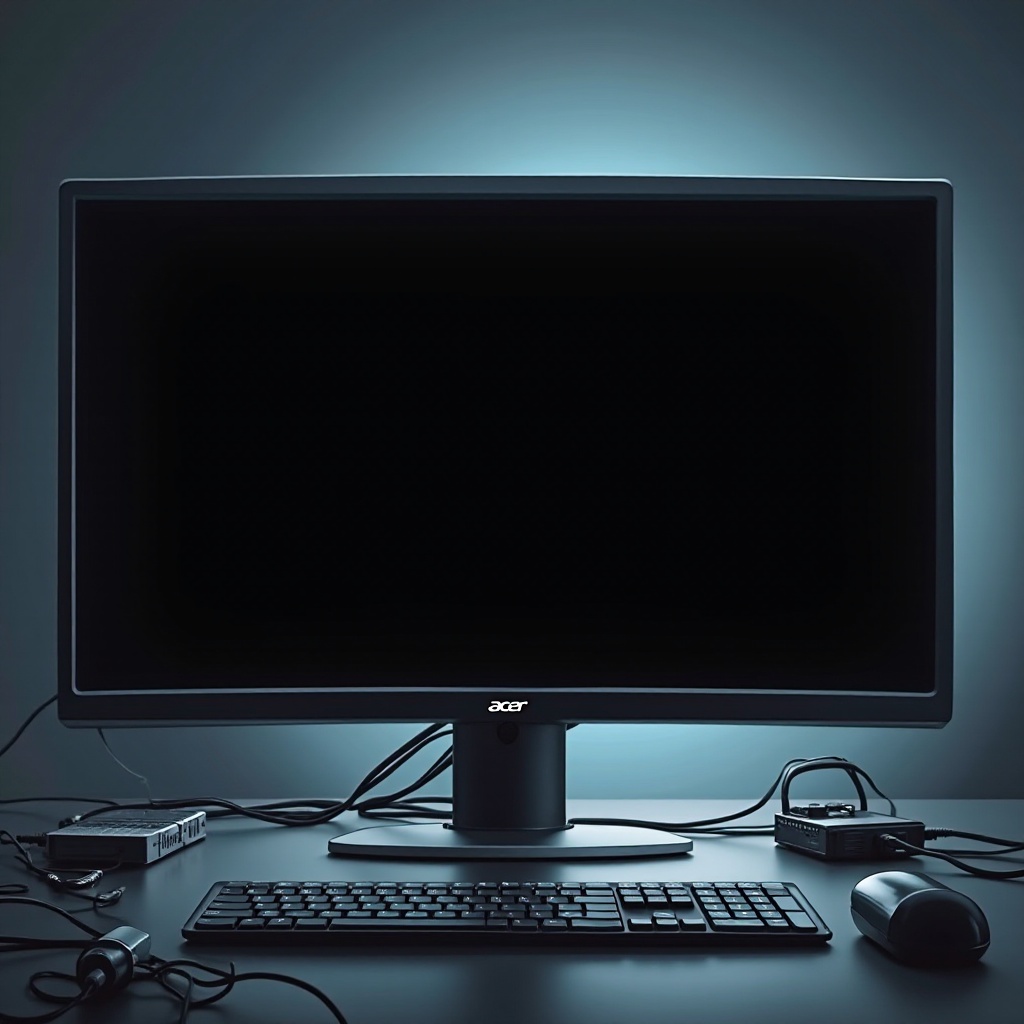
Basic Troubleshooting Steps
Having identified some potential causes, here’s how to resolve a black screen issue using basic troubleshooting steps.
-
Checking Power and Connection Integrity: First, verify the cables are secured. Detach the power cable, pause for a few seconds, then reconnect it. Guarantee a stable connection between the monitor and power source.
-
Verifying Input Source and Display Settings: Utilize the monitor’s on-screen menu to toggle input sources and ensure they align with your device connections.
-
Performing Monitor and System Resets: Turn off both monitor and connected device, unplug them, and wait approximately 30 seconds. Reconnect and restart them. This aids in resolving minor glitches and resets incorrect settings.
In cases where basic troubleshooting doesn’t resolve the issue, further diagnostics may be required to get to the root of the problem.
Advanced Solutions and Diagnostics
For persistent black screen issues, explore these advanced troubleshooting methods.
Updating or Reinstalling Graphics Drivers: Use your operating system to navigate to Device Manager and locate your graphics driver. Check for updates or reinstall if corrupt drivers are suspected.
Testing with Alternate Hardware: Test your Acer monitor on another device. If it functions, the issue lies with the original computer. Alternatively, testing another monitor on your computer can pinpoint whether the monitor is faulty.
Addressing Persistent Software Issues: In cases where neither hardware nor drivers resolve the black screen, consider a system restore to revert recent changes that may have triggered the problem.
These strategies offer a thorough approach if standard troubleshooting doesn’t suffice.
Maintenance Tips to Prevent Black Screen Problems
Regular maintenance is essential in avoiding future black screen scenarios.
Regular Cleaning and Dust Management: Prevent dust accumulation that can impact connections and hardware exposure through regular cleaning of the monitor and cables to ensure effective performance.
Consistent Software and Driver Updates: Set automatic updates for software and drivers to prevent lagging performance and maintain compatibility.
Early Detection of Display Issues: Pay attention to flickering or distortion — issues that, if not addressed promptly, could develop into more significant problems causing black screens.
Continuous maintenance can decrease the chances of encountering black screen issues and improve your Acer monitor’s longevity.
Conclusion
Addressing a black screen on your Acer monitor requires no expertise with a structured approach. By understanding causes and performing both foundational and advanced troubleshooting, users can efficiently resolve most problems. Regular upkeep and keeping software updated augment your monitor’s performance and lifespan.
Frequently Asked Questions
Why does my Acer monitor randomly go black?
Random black screens may result from overheating, power supply issues, or faulty cables. Inspect these elements to determine the source of the problem.
How can I update my Acer monitor drivers?
Visit the Acer website or use your operating system’s Device Manager to search for and install the latest driver updates.
What should I do if my Acer monitor is still under warranty and has a black screen?
Contact Acer support to explore repair or replacement options. Keeping a record of your troubleshooting steps can be beneficial.