
Mastering iPhone Vibrate Mode: Everything You Need to Know
Introduction
The vibrate mode on an iPhone is a crucial feature for those who prefer notifications that are less intrusive yet effective. Whether you’re attending a formal event or focused in a meeting, vibrate mode ensures that you remain informed without causing distractions. Let’s delve into how this mode operates and how to make it work best for you.
Does iPhone Have a Vibrate Mode?
Absolutely, iPhones do have a vibrate mode. This essential feature allows users to receive notifications without the noise of a ringing phone, making it perfect for quieter environments. Now that we’ve established its presence, the next step is to understand how you can activate vibrate mode efficiently on your device.
How to Enable Vibrate Mode on Your iPhone
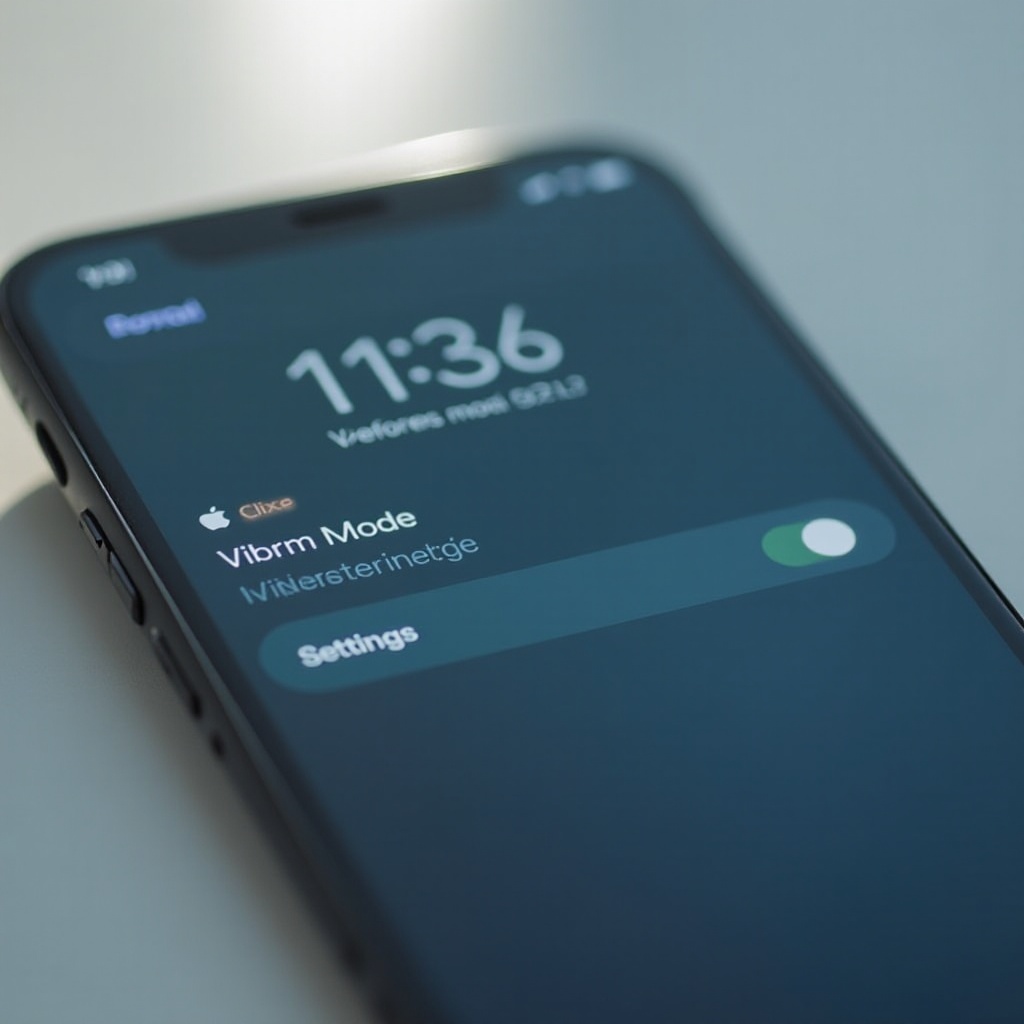
Turning on vibrate mode is straightforward with a few easy steps. Here’s how:
- Physical Button: Simply switch the toggle on the left side of your iPhone. A brief vibration will confirm the mode is activated.
- Settings Menu: Go to ‘Settings’, select ‘Sounds & Haptics’, and toggle ‘Vibrate on Silent’ to enable vibration when on silent.
- Control Center: Access the Control Center by swiping, and tap the sound icon to switch to vibrate mode.
With vibrate mode activated, you can now personalize it according to your preferences for an optimal experience.
Customizing iPhone Vibrate Settings
Customization allows vibrate mode to be uniquely yours. Here’s how:
- Custom Vibrations for Contacts: Open ‘Contacts’, choose a contact, tap ‘Edit’, and then ‘Vibration’. Select a preset pattern or create a personalized one by tapping the screen.
- Adjusting Vibration Intensity: Although direct intensity adjustments aren’t available, explore different patterns in ‘Settings’ under ‘Accessibility’ > ‘Touch’ > ‘Vibration’ for varied tactile feedback.
With these customizations, your phone signals will be tailored to your lifestyle. Next, let’s address issues that might arise with vibrate mode.
Troubleshooting Common Vibrate Mode Issues
Occasionally, problems with vibrate mode can occur. Here’s how to handle them:
- iPhone Not Vibrating: First, ensure the side toggle is set correctly. Check if vibrate settings are active and restart the device if necessary.
- Vibrate Mode Won’t Turn Off: Switching the toggle or rebooting your iPhone can usually solve the problem. If persistent, consider resetting all settings via ‘Settings’ > ‘General’ > ‘Reset’.
Diagnosing and fixing these issues helps maintain a seamless vibrate mode experience. Let’s enhance the functionality of this feature further.
Enhancements with Vibrate Mode
Take vibrate mode to the next level by integrating it with additional features:
- Integrating with Do Not Disturb: Navigate to ‘Settings’, click on ‘Do Not Disturb’, and customize when vibrate should remain active, even when notifications are silent.
- Using Third-party Apps: Apps such as ‘BuzzIt’ offer granular control over vibration patterns, enabling personalized alert styles that suit different contexts.
These enhancements ensure that vibrate mode remains functional and adaptable to your environment, amplifying your overall iPhone experience.
Benefits of Using Vibrate Mode on iPhone
Here are some compelling benefits:
- Discreet Notifications: Keeps interruptions to a minimum during quiet settings.
- Accessibility: Provides alternative notification methods for individuals with auditory challenges.
Recognizing these benefits reaffirms why vibrate mode is indispensable for iPhone users seeking a silent way to stay connected.
Conclusion
iPhone’s vibrate mode is more than just a feature; it’s a vital tool for managing notifications silently and efficiently. By enabling, customizing, and troubleshooting your settings, you can optimize this feature for both personal and professional environments.
Frequently Asked Questions
Is Vibrate Mode Available on All iPhone Models?
Yes, vibrate mode is a built-in feature available on all iPhone models.
How Does Vibrate Mode Differ from Silent Mode?
Vibrate mode provides tactile notifications, while silent mode disables all sounds and vibrations.
Can I Customize Vibrations for Different Notifications?
Yes, you can create custom vibrations for contacts and alerts to suit your notification preferences.