
Troubleshooting CPU Not Detecting Monitor
Introduction
Encountering a CPU that does not detect your monitor can be a frustrating experience, especially when it disrupts your routine tasks or entertainment activities. Fortunately, understanding and addressing this issue can return your system to its normal operation. This guide will delve into the communication between CPUs and monitors, provide actionable troubleshooting steps, and offer maintenance tips to avert future issues.
Understanding the CPU-Monitor Connection
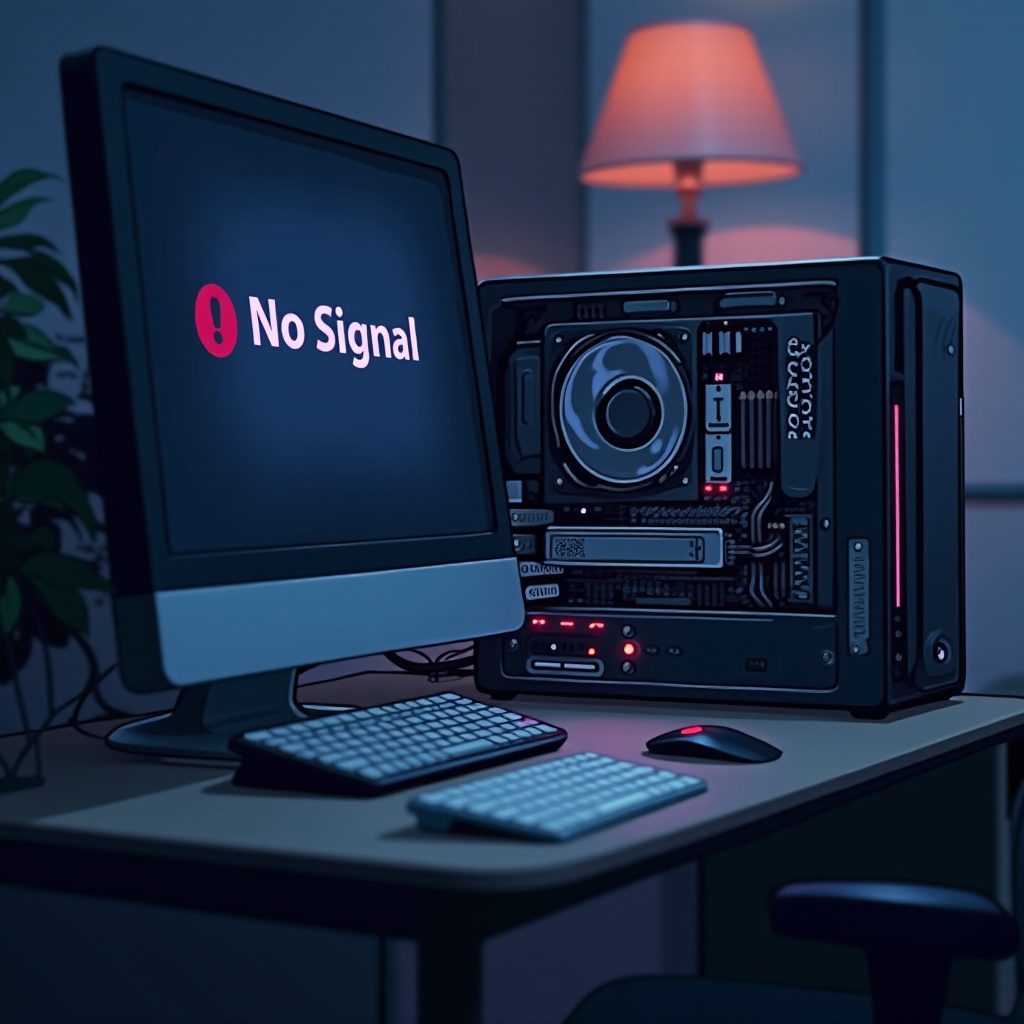
A seamless CPU-monitor connection is vital for display functions. Understanding how these components communicate helps in pinpointing problems when the system fails. Typically, this communication involves both physical hardware connections—like cables and ports—and software configurations. Any disruption in either can lead to detection failures. Recognizing the symptoms, such as a blank screen or a ‘no signal’ message, helps in differentiating whether the problem lies in hardware or software.
Awareness of these common issues allows us to focus our troubleshooting efforts more efficiently. Let’s explore the causes behind these detection failures.
Common Causes of Detection Failures
There are numerous reasons why your CPU may not detect your monitor, often categorized into hardware and software issues.
-
Hardware-related Causes: Often, physical connections are to blame, such as outdated cables, damaged ports, or accumulation of dust around connectors and ports.
-
Software-related Causes: Software difficulties arise from outdated drivers, incorrect display settings, or operating system glitches.
Knowing these prevalent issues can help direct your troubleshooting efforts effectively, saving time and getting to the heart of the problem with clarity.
Step-by-Step Troubleshooting Guide
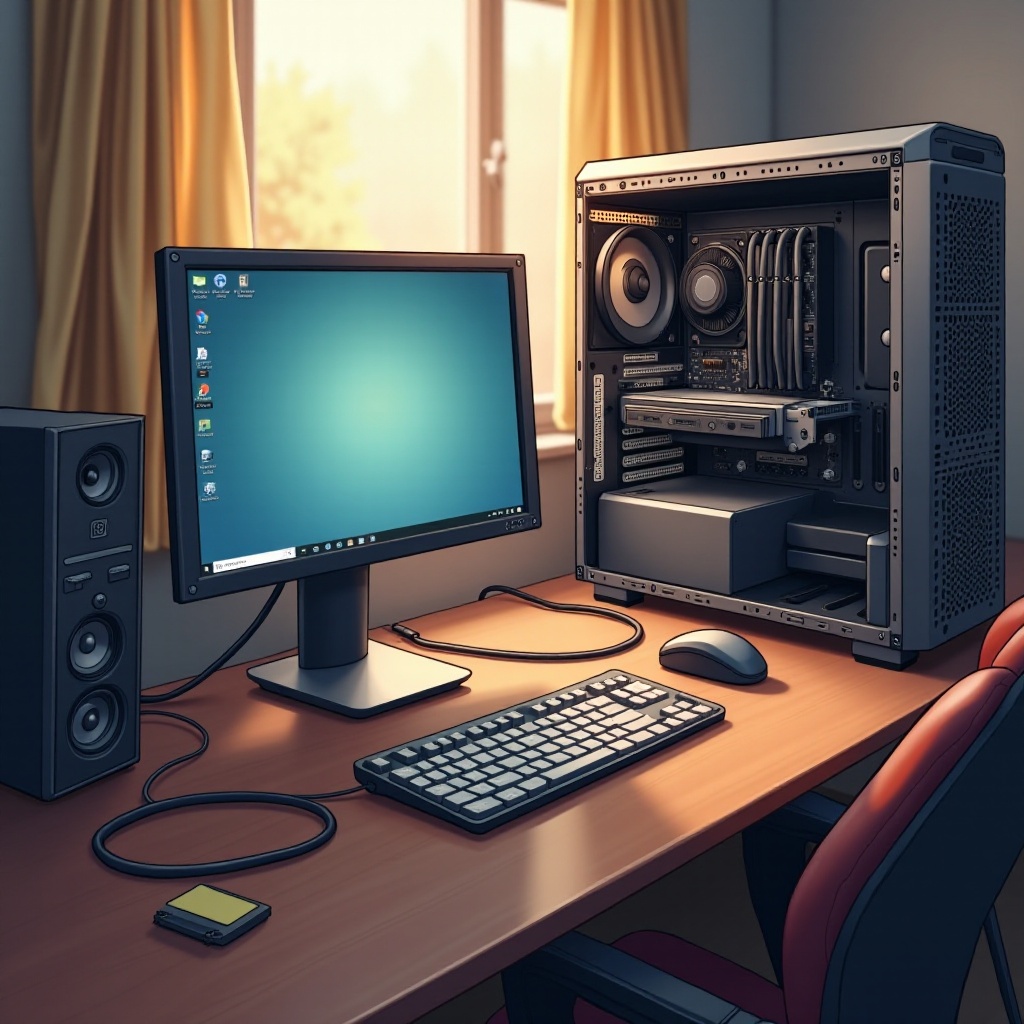
When your CPU fails to detect your monitor, follow this structured approach:
- Checking Physical Connections:
- Confirm that all cables are securely connected to the CPU and monitor.
- Inspect cables for signs of wear and tear. Replace if necessary.
-
Attempt to use alternative ports or cables to determine fault in existing ones.
-
Verifying Display Settings on Windows and Mac:
- On Windows, right-click the desktop, select ‘Display settings’, and ensure the correct monitor is chosen.
-
On a Mac, open ‘System Preferences’, select ‘Displays’, and verify active recognition of the monitor.
-
Testing with Alternative Monitors:
-
Connect your CPU to another monitor to isolate the issue. If another monitor works, the problem is likely with the original monitor.
-
Advanced Troubleshooting Techniques:
- BIOS and UEFI Configuration: Access your BIOS/UEFI by pressing F2/Del/Esc on startup, confirming that the monitor is detected and display settings are set correctly.
- Diagnosing Faulty Hardware: If possible, try using different graphics cards or RAM to isolate hardware failures.
- Using External Diagnostic Tools: Utilize software like HWMonitor to identify issues with CPU and GPU temperatures that might affect detection.
By systematically implementing these steps, you can effectively pinpoint the issue. Once identified, apply the necessary solution, whether it involves replacing faulty hardware or updating software drivers.
Preventative Measures and Maintenance
After resolving the detection issue, it is crucial to employ preventative measures to avoid recurrence.
- Routine Hardware Checks:
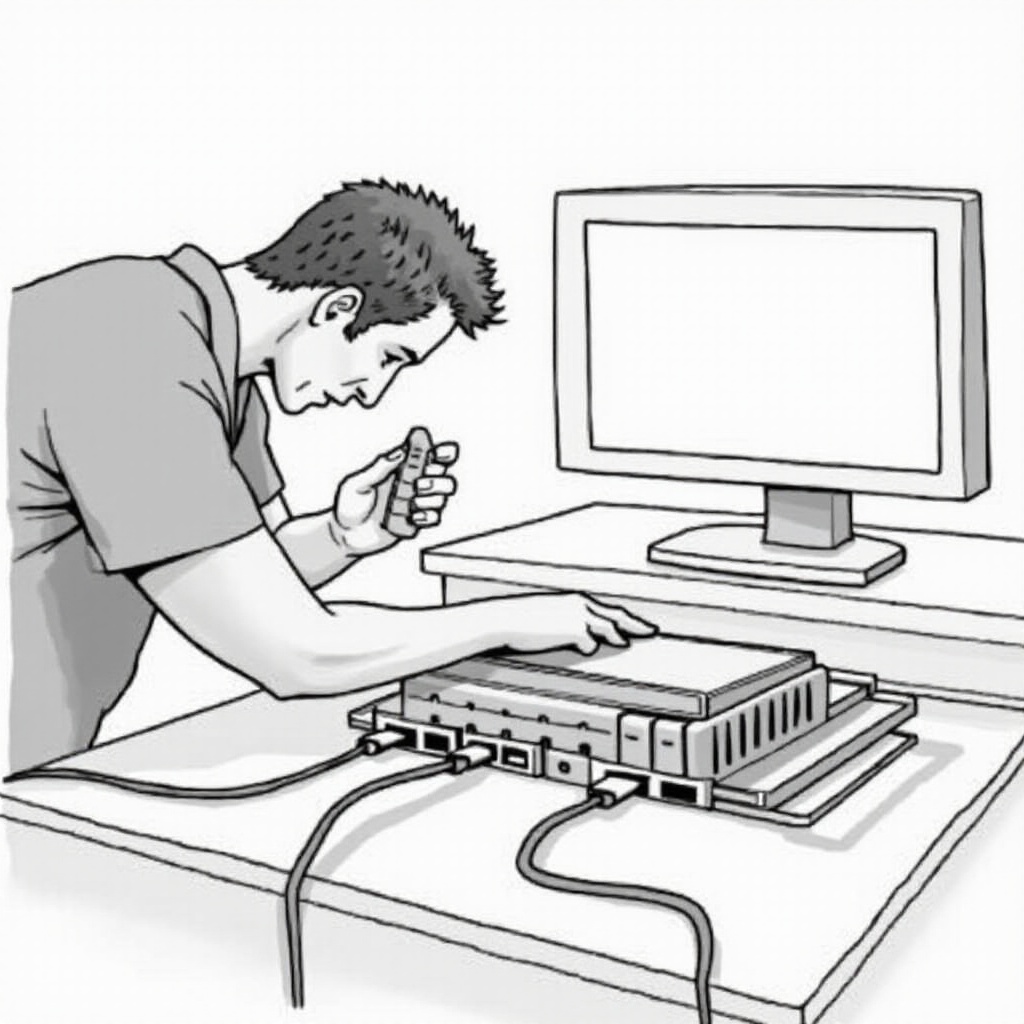
- Regularly inspect and clean hardware components to ensure optimal functionality.
-
Replace aging cables and peripherals before they become problematic.
-
Keeping Systems Updated:
- Maintain your operating system and all drivers up-to-date to prevent incompatibilities and software conflicts.
Applying these preventative strategies can significantly enhance system longevity, ensuring it remains functional and efficient, and minimizing the risk of future detection issues.
Conclusion
A non-detecting monitor can be a setback, but diagnosing and resolving the issue need not be. This guide has armed you with the necessary knowledge to troubleshoot and maintain your system effectively, ensuring uninterrupted productivity and enjoyment.
Frequently Asked Questions
Why is my CPU not detecting my new monitor?
New monitors often require updated drivers. Ensure you install any drivers provided with the monitor and check all connections.
Can faulty cables cause a monitor detection issue?
Yes, damaged or improperly connected cables are a frequent cause of detection problems. Always verify cables during troubleshooting.
Should I update my operating system to solve detection problems?
Updating your operating system can help resolve detection issues, as updates often address compatibility improvements and bug fixes.