
How to Connect Your iPhone to an External Monitor in 2024
Achieving a seamless connection between your iPhone and an external monitor can revolutionize your device usage. Whether you’re looking to expand your workspace, deliver presentations, or enhance your media experience, this comprehensive guide provides you with all the necessary steps.
Introduction
Connecting your iPhone to an external monitor opens up possibilities for enhanced viewing and improved productivity. Whether it’s for professional or personal use, understanding how to establish this connection can be incredibly beneficial. This guide covers the essentials, ensuring you’re equipped to make the most out of your iPhone and monitor.
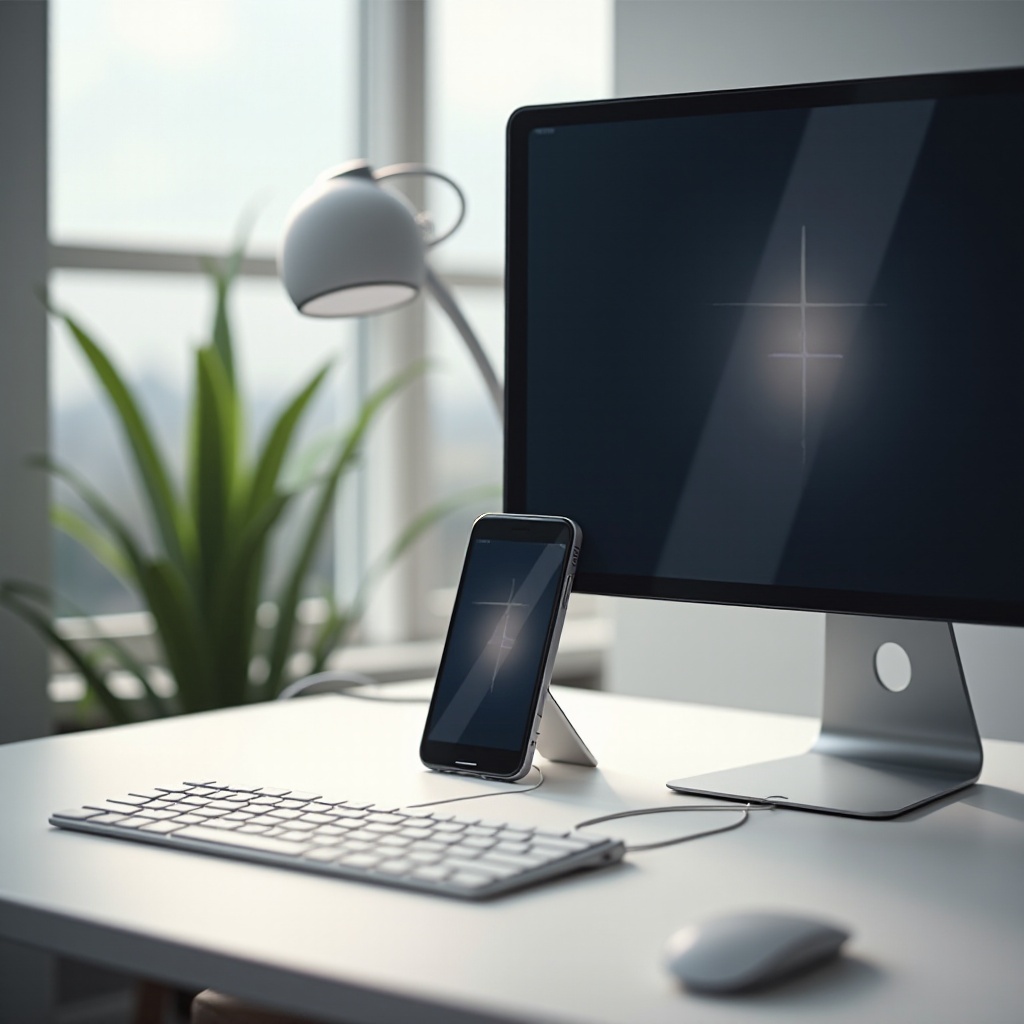
Necessary Equipment and Compatibility
Before diving into the connection process, it’s vital to ensure you have the right equipment. This preparation involves checking compatibility and gathering essential accessories.
-
‘Required Cables and Adapters’: When planning a wired connection, you need a Lightning Digital AV Adapter or a USB-C to HDMI adapter, aligned with your iPhone model. This connects your device to an HDMI cable linked to your monitor.
-
‘Understanding Monitor Compatibility with iPhone’: Check if your monitor sports an HDMI input, the most commonly used port for this type of connection.
-
‘Checking iPhone Models for Compatibility Issues’: It’s crucial to confirm that your iPhone model supports the connection method you’re planning to use. Most newer models facilitate both wired and wireless connections comfortably.
Having understood equipment compatibility, you’re ready to explore specific connection methods. Let’s start with wired connections, known for their stability and reliability.
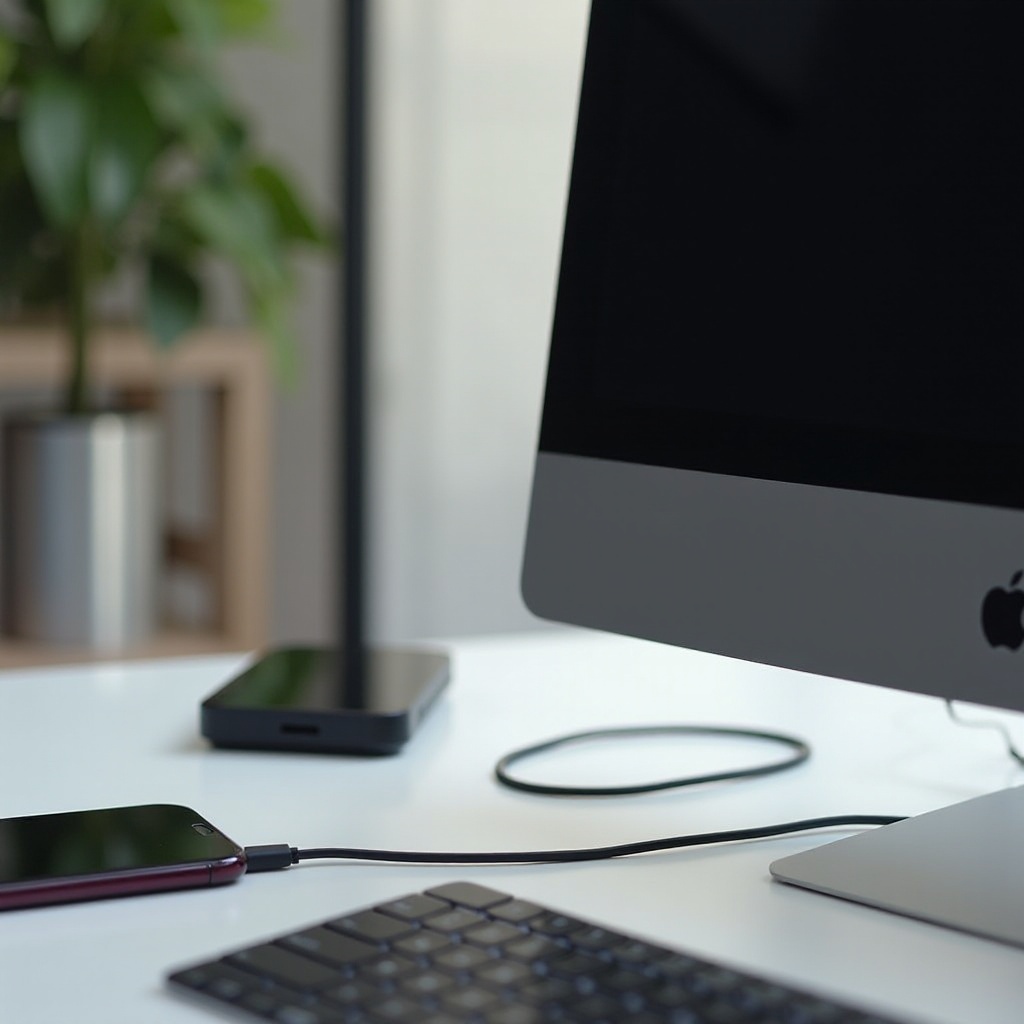
Wired Connection Method
Wired connections provide a stable, uninterrupted link between your iPhone and monitor. Here are the steps to achieve this:
- ‘Step-by-Step Guide Using Lightning to HDMI’:
- Connect the Lightning Digital AV Adapter to your iPhone.
- Plug your HDMI cable into the adapter.
-
Connect the other end to your monitor’s HDMI port.
-
‘Setting Up Your Monitor for a Wired Connection’:
- Activate your monitor and select the corresponding HDMI input.
- Your iPhone’s display should appear on the monitor screen.
Wired connections are perfect for stable media playback, but for flexibility and ease of use, wireless connections offer a different set of benefits.
Wireless Connection Method
Wireless methods, while less straightforward than wired ones, offer user flexibility and reduced clutter.
- ‘How to Use AirPlay for Screen Mirroring’:
- Ensure both your iPhone and monitor are on the same Wi-Fi network.
- Open Control Center on your iPhone and tap ‘Screen Mirroring’.
-
Select your monitor from the available devices.
-
‘Configuring Your Monitor for AirPlay Input’:
- If using an Apple TV or AirPlay-enabled monitor, ensure it’s powered and set to AirPlay mode.
While both connection methods generally function smoothly, occasional issues might arise. Addressing these ensures your setup remains uninterrupted.
Troubleshooting Common Issues
Now that you’re set up, here’s how to tackle any connectivity challenges you may face:
- ‘Solutions to Connectivity Problems’:
- Double-check all cable connections and adapter fittings.
- Restart both your iPhone and monitor to reset their connections.
-
Ensure software updates are current to avoid compatibility issues.
-
‘What to Do If the Display Is Not Detected’:
- Ensure correct input selection on the monitor.
- Test alternative HDMI cables or adapters if issues persist.
Troubleshooting tips should resolve most issues. Once everything functions correctly, it’s time to optimize your display settings for the best possible experience.
Optimizing Your Display Experience
After establishing a solid connection, fine-tuning your display settings will maximize the quality of your viewing experience.
- ‘Adjusting Display Settings for Better Performance’:
- Use your monitor’s controls to adjust brightness and contrast.
-
Match the display resolution to the monitor’s native settings for the best picture quality.
-
‘Apps and Features for a Seamless Experience’:
- Utilize apps that support larger displays, enhancing the mirror experience.
- Apps like Netflix and YouTube are optimized for external viewing, making them perfect for mirrored displays.
Once optimized, varying practical uses of this setup become apparent, suitable for both work and leisure activities.
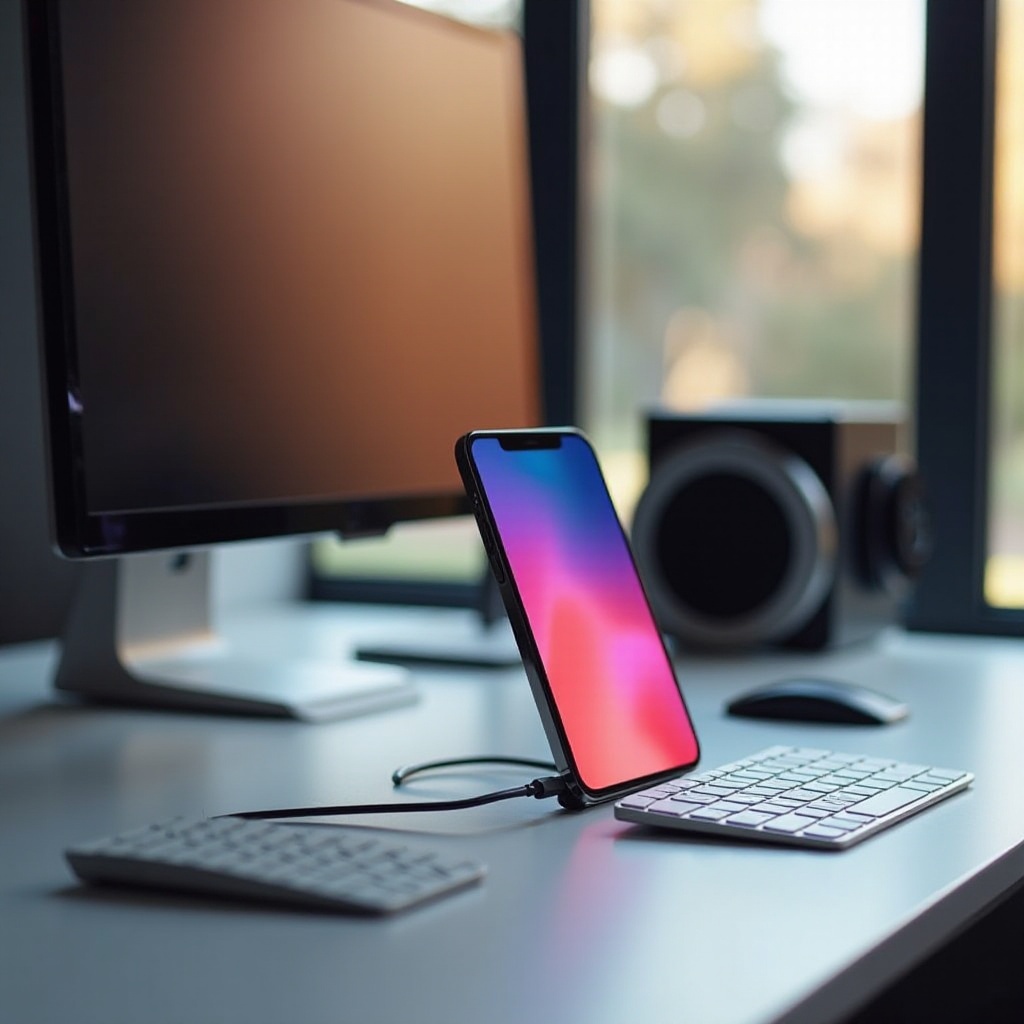
Practical Applications of an iPhone-Monitor Setup
Leveraging an iPhone-to-monitor connection transforms both professional and personal activities:
- ‘Enhancing Work and Presentation Capabilities’:
- Present slides or videos with ease on a larger screen.
-
Increase work efficiency using multitasking apps.
-
‘Gaming and Media Consumption on a Larger Screen’:
- Enhance your gaming sessions with larger visuals and better audio integrations.
- Streamline watching movies and TV shows with friends and family.
Such a setup expands your iPhone’s utility in diverse settings.
Conclusion
This guide has equipped you with all the necessary steps for connecting your iPhone to an external monitor. By applying these methods, you ensure a richer experience, whether for professional tasks or personal enjoyment. Dive into this opportunity and maximize your device’s potential for a more versatile digital life.
Frequently Asked Questions
Can all monitors connect to an iPhone?
Not every monitor is compatible. Ensure your monitor has an HDMI input or AirPlay support for seamless connection.
What is the best way to connect my iPhone wirelessly?
AirPlay is the simplest wireless method, provided your monitor is AirPlay-enabled or paired with an Apple TV.
Why is my iPhone not displaying on the monitor?
Ensure all connectors are secure, the monitor is set to the correct input, and consider using alternative cables or adapters.